Git Basics: init, add, commit, and .gitignore
Your first Git commit in five minutes: working tree, staging area, status/diff/log, .gitignore, and what really happens when you commit a secret.
Series: Git lecture 1/6 (beginner). For anyone who has never used Git, or who has used it only by copying commands from a wiki. By the end you will create a repository, make commits, read status, diff and log, and keep secrets and build output out of history.
If you just joined a team and someone said "push it to the repo", this lecture is for you. It solves the beginner's problem of not knowing where a change currently lives: on disk only, staged, or saved in history. Once you can answer that from git status, most Git confusion goes away.
Everything below was run on Git 2.54.0 (Apple Git-157) on an Apple Silicon Mac (M1 Pro), in a throwaway folder, with a demo identity (demo <demo@example.com>). Outputs are pasted as printed; only the home folder was shortened to ~.
Three places a change can be
Git uses three words you will see in every error message. Learn them first.
- Working tree: the normal files in your project folder. You edit these.
- Staging area (also called the index): a list of exactly what the next commit will contain.
git addcopies a file's current content into it. - Repository: the hidden
.gitfolder. It stores every commit. A commit is a saved snapshot of the staging area, with an author, a date, a message and a pointer to the previous commit.
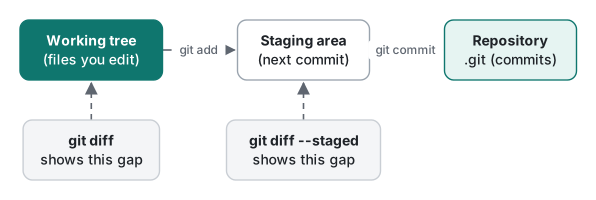
The staging area is the part that surprises people. It exists so you can commit some of your changes: fix a bug and a typo in two files, then commit them separately.
Your first commit in five minutes
Open a terminal and run these one by one. First, a mistake almost everyone makes: running Git outside a repository.
git status
fatal: not a git repository (or any of the parent directories): .git
fatal: means Git stopped. The exit code was 128. The fix is to create (or cd into) a repository:
mkdir shop && cd shop
git init
hint: Using 'master' as the name for the initial branch. This default branch name
hint: will change to "main" in Git 3.0. To configure the initial branch name
hint: to use in all of your new repositories, which will suppress this warning,
hint: call:
hint:
hint:   git config --global init.defaultBranch <name>
...
Initialized empty Git repository in ~/demo/shop/.git/
The hint: lines are advice, not errors. Most teams use main; git init -b main picks it for this repository only. Now create a file and watch git status move it through the three places:
printf 'print("hello, shop")\n' > app.py
git status
On branch master

No commits yet

Untracked files:
  (use "git add <file>..." to include in what will be committed)
    app.py

nothing added to commit but untracked files present (use "git add" to track)
Untracked means Git sees the file but has never saved it. Stage it, then commit:
git add app.py
git commit -m "Add app.py"
git log
[master (root-commit) 8d02147] Add app.py
 1 file changed, 1 insertion(+)
 create mode 100644 app.py
commit 8d02147eba3b707bfb452bed66288443ef8f808b
Author: demo <demo@example.com>
Date:   Thu Nov 12 01:00:00 2026 +0000

    Add app.py
8d02147… is the commit's ID, a hash of its content. Seven characters are enough to refer to it. root-commit means it has no parent: it is the first one.
Who are you? (the identity step)
Before your first real commit, set your name and e-mail once: git config --global user.name "Your Name" and git config --global user.email "<your work e-mail>". On macOS, when no identity was configured, our test commit did not fail. Git built a name from the Mac account and an e-mail from the account and host name, ending in .local, committed, and only then printed Your name and email address were configured automatically…. That half-wrong identity is now inside the commit. Set it before you start, and use the address your team expects.
Reading status, diff and log
Change the file and ask Git what happened:
printf 'print("hello, shop")\nprint("total:", 3 * 1200)\n' > app.py
git status
git diff
On branch master
Changes not staged for commit:
  (use "git add <file>..." to update what will be committed)
  (use "git restore <file>..." to discard changes in working directory)
    modified:   app.py

no changes added to commit (use "git add" and/or "git commit -a")
diff --git a/app.py b/app.py
index d0b0cc7..fb97e2d 100644
--- a/app.py
+++ b/app.py
@@ -1 +1,2 @@
 print("hello, shop")
+print("total:", 3 * 1200)
Lines starting with + were added, - removed. Now stage the change and run both diffs:
git add app.py
git diff            # prints nothing
git diff --staged   # prints the change
This is the most useful fact in this lecture. git diff shows what is not staged yet; git diff --staged shows what the next commit will contain. After git add, plain git diff printed nothing in our run, and many beginners conclude their change was lost. It was not; it moved to the staging area.
git commit -m "Print total"
git log --oneline
292126a Print total
8d02147 Add app.py
| You want to know | Command |
|---|---|
| Which files changed, and where each change is | git status (-s for short form) |
| Unstaged edits, line by line | git diff |
| What the next commit will contain | git diff --staged |
| History, one line per commit | git log --oneline |
| Which files each commit touched | git log --stat |
| One old version of a file | git show <commit>:<path> |
.gitignore: keep junk and secrets out
Some files should never be committed: build output, caches, .env files with passwords. Let us make the classic mistake on purpose. We create a .env and a Python cache folder, then use git add . ("add everything"):
printf 'DB_PASSWORD=demo-secret-123\n' > .env
mkdir __pycache__; printf 'x' > __pycache__/app.cpython-39.pyc
git add .
git status --short
git commit -m "Add config"
A  .env
A  __pycache__/app.cpython-39.pyc
[master 0d2cbec] Add config
 2 files changed, 2 insertions(+)
 create mode 100644 .env
 create mode 100644 __pycache__/app.cpython-39.pyc
Now we "fix" it the way most people try first: write a .gitignore.
printf '.env\n__pycache__/\n' > .gitignore
git status --short
git check-ignore -v .env; echo "exit=$?"
?? .gitignore
exit=1
git check-ignore printed nothing and exited with 1, meaning "not ignored". .gitignore only applies to untracked files. .env is already tracked, so Git keeps watching it. With --no-index Git admits the rule matches (.gitignore:1:.env .env), but the rule is not used for a tracked file. To stop tracking while keeping the file on disk:
git rm --cached .env __pycache__/app.cpython-39.pyc
git add .gitignore
git commit -m "Stop tracking .env and pycache"
rm '.env'
rm '__pycache__/app.cpython-39.pyc'
[master ba6ab87] Stop tracking .env and pycache
 3 files changed, 2 insertions(+), 2 deletions(-)
 delete mode 100644 .env
 create mode 100644 .gitignore
 delete mode 100644 __pycache__/app.cpython-39.pyc
ls -a still listed .env in the folder, so your local settings keep working.
Common mistake: "I deleted the secret, so it is gone"
What actually happens. The commit 0d2cbec still exists, and it still contains the file:
git show HEAD~1:.env
git log --oneline -- .env
DB_PASSWORD=demo-secret-123
ba6ab87 Stop tracking .env and pycache
0d2cbec Add config
Anyone who clones the repository can run the same command. Deleting a file only adds a new snapshot without it; history is unchanged.
What about a commit you have not pushed yet? We tried the usual repair, git commit --amend, which replaces the last commit:
git rm --cached .env
printf '.env\n' > .gitignore
git add .gitignore
git commit --amend -m "Add settings (without .env)"
git reflog
git show 'HEAD@{1}:.env'
75ed8d6 HEAD@{0}: commit (amend): Add settings (without .env)
88dcb5b HEAD@{1}: commit: Add settings
7b51afc HEAD@{2}: commit (initial): Add app.py
DB_PASSWORD=demo-secret-123
The branch no longer shows the secret, but the old commit is still in your local .git, reachable through the reflog (Git's local diary of where HEAD pointed). It is not sent by a push because no branch points to it, and it expires later. Lecture 5 explains the reflog in detail.
The fix, in order:
- Treat the secret as leaked. Change the password or revoke the key first. This is the only step that really protects you once it has been pushed.
- Not pushed yet:
git rm --cached, add the path to.gitignore,git commit --amend. - Already pushed: removing it from history means rewriting shared history (tools such as
git filter-repo, which is not bundled with Git and was not run here), and every teammate must re-clone. Rotating the secret is still step 1. - Prevent it: create
.gitignorebefore the firstgit add ., and prefergit add <file>while you learn.
Measured: what git add . does to an ignored-folder mistake
A common real accident is git add . in a project that has a large build folder. We created 20,000 small files (16 to 20 bytes each, build/d0…d199/f0…f99.o) in a repository with one committed file, and measured on the Apple Silicon Mac (M1 Pro), Git 2.54.0. Timings are 7 runs each (median); git add . was run once.
| State | git status median |
.git size on disk |
|---|---|---|
build/ untracked, before add |
16.6 ms | 112 KB |
after git add . (took 15.2 s) |
55.0 ms | 82,284 KB |
after git reset (unstaged again) |
— | 80,116 KB |
after git gc --prune=now |
— | 128 KB |
build/ listed in .gitignore |
13.3 ms | — |
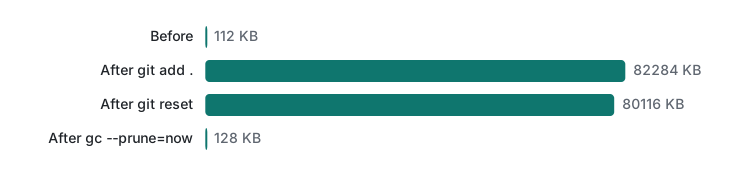
Two lessons. First, git add writes every file into .git as an object immediately. Unstaging with git reset does not delete those objects; they stay as unreferenced data until garbage collection removes them. Second, the sizes are disk usage: each tiny object takes a 4 KiB block on APFS, so 20,000 objects of under 20 bytes show up as roughly 80 MB. In a real project with big binaries, an accidental git add . costs real space and time, and committing them makes it permanent in history.
Honest limits / version notes
- Run on Git 2.54.0 (Apple Git-157), macOS, Apple Silicon (M1 Pro). The
master/Git 3.0 hint and thegit config set advice…wording are from this version; older Git prints a shorter hint. git restore, shown bygit status, arrived in Git 2.23 (2019) together withgit switch. Older tutorials usegit checkout -- <file>for the same job.- The automatic macOS identity behaviour is what we saw on this Mac with no global config. Other systems may refuse to commit with
Author identity unknowninstead. - Timings depend on disk and file count; they are single-machine numbers, not a benchmark.
- History rewriting tools were described, not run.
Exercises
- In a new repository, create
a.txtandb.txt, but commit onlya.txt. Which command shows thatb.txtis still untracked? - You edited
app.pyand rangit add app.py.git diffprints nothing. Which command shows your change? notes.logis already committed. You add*.logto.gitignore, butgit statusstill showsnotes.logas modified. Fix it without deleting the file from disk.
Answers
git add a.txt && git commit -m "Add a", thengit status(orgit status -s, which prints?? b.txt).git diff --staged. Staged changes are not shown by plaingit diff.git rm --cached notes.log, thengit commit -m "Stop tracking notes.log". Check withgit check-ignore -v notes.log, which now prints the matching rule.
Next: Git lecture 2: branches, merges and conflicts · Also in this series: remotes, push, pull and fetch · Back to the new-hire study roadmap. For the command line itself, start with shell basics.
FAQ
I added a file to .gitignore but Git still shows its changes. Why?
.gitignore only affects untracked files. If the file was already committed, Git keeps tracking it. Run git rm --cached <file> to stop tracking it while keeping it on disk, then commit. git check-ignore -v <file> prints nothing for a tracked file, which is the quickest way to notice this.
I committed a password. Is deleting the file in the next commit enough?
No. The old commit still contains it: git show HEAD~1:.env printed the password in our test. Treat the secret as leaked and rotate it first. If the commit was never pushed, git commit --amend or a reset removes it from the branch, but even then the old commit stays reachable through the reflog until it expires.
What is the difference between git diff and git diff --staged?
git diff compares the working tree with the staging area (what you have not staged yet). git diff --staged compares the staging area with the last commit (what the next commit will contain). After git add, plain git diff printed nothing in our run, while git diff --staged showed the change.