Set Up C# in 2026: .NET 10 SDK, dotnet CLI, Editors
Set up C# in 2026: install the .NET 10 SDK, create and run a project with the dotnet CLI, learn top-level statements, and pick VS 2026, VS Code or Rider.
Rewritten November 2026. At this address there used to be a 2021 Korean walkthrough of the Visual Studio 2019 installer. Visual Studio 2019 left mainstream support in April 2024 (extended support runs to April 2029), and in 2026 a new C# developer gets more out of knowing the .NET SDK and the
dotnetcommand than out of installer screenshots. So the URL stays, and the content is now a .NET 10 setup guide. Every command and output below was run on an Apple Silicon Mac. All 13 of the old 2019-era screenshots were removed.
This guide is for people starting C# from zero, and for developers who learned C# in Visual Studio years ago and now want to work on macOS or Linux. The short version: the only thing C# development strictly needs is the .NET 10 SDK. With it, two commands, dotnet new console and dotnet run, give you a running program. Pick an editor afterwards, based on your operating system and taste.
What changed since the 2021 version
The 2021 article followed the Visual Studio 2019 installer screen by screen: choosing the "Desktop development with C++" workload, waiting for the download, signing in. Five years later, several of its premises have shifted:
- C# is not Windows-only. The old text introduced C# as a language "optimized for the .NET Framework". The mainstream platform today is .NET (currently .NET 10), which runs on Windows, macOS and Linux. .NET Framework 4.8.x remains for maintaining existing Windows apps.
- C# is not "based on C++". It borrows C-family syntax, but it was not built on top of C++. It is object-oriented, as the old text said, and modern C# code also leans heavily on lambdas, generics and pattern matching.
- You can start without an IDE. The
dotnetcommand-line interface creates, builds, runs and packages projects. Visual Studio itself uses the same SDK and MSBuild under the hood. - The original download link carried someone else's tracking parameter, so it is gone. Get the SDK from Microsoft's official .NET download page.
The removed images were 12 screenshots of the installer and the IDE, plus one capture of the old download page. That capture included a Microsoft promotional image showing another person's user folder path (C:\Users\…), and the first-launch IDE screenshot showed the signed-in account's profile badge. The rest showed version 16.0 screens that no longer match what you would install today.
Install the .NET 10 SDK on Windows, macOS or Linux
Install the SDK, not just the runtime. The runtime can run programs but cannot build them.
| OS | How |
|---|---|
| Windows | The official installer, or winget install Microsoft.DotNet.SDK.10 |
| macOS | The official .pkg installer (installs to /usr/local/share/dotnet), or Homebrew: brew install dotnet |
| Linux | Your distribution's package (dotnet-sdk-10.0 on Ubuntu and others), or the official dotnet-install.sh --channel 10.0 |
Package availability on Linux varies by distribution and release, so check your distribution's section of Microsoft Learn's "Install .NET on Linux" page.
Open a new terminal and confirm the install. Here is the real output on the Mac used for this article (Homebrew install), trimmed:
$ dotnet --info
.NET SDK:
 Version:           10.0.403
 Commit:            5a2162bea6
 Workload version:  10.0.400-manifests.a00bebb6
 MSBuild version:   18.9.15+5a2162bea

Runtime Environment:
 OS Name:     Mac OS X
 OS Version:  26.6
 OS Platform: Darwin
 RID:         osx-arm64
 Base Path:   /opt/homebrew/Cellar/dotnet/10.0.403/libexec/sdk/10.0.403/
…
Host:
  Version:      10.0.14
  Architecture: arm64
…
.NET SDKs installed:
  10.0.403 [/opt/homebrew/Cellar/dotnet/10.0.403/libexec/sdk]
Check three things: that .NET SDK: Version is 10.0.x; that RID matches your CPU (osx-arm64 on Apple Silicon, osx-x64 on an Intel Mac, win-x64 or linux-x64 elsewhere); and that .NET SDKs installed lists what you expect. For just the version, dotnet --version printed 10.0.403.
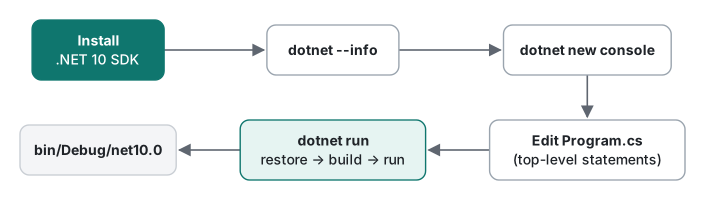
dotnet new console and dotnet run
In the folder where you keep projects, run:
$ dotnet new console -o HelloCs
The template "Console App" was created successfully.

Processing post-creation actions...
Restoring HelloCs/HelloCs.csproj:
  Determining projects to restore...
  Restored HelloCs/HelloCs.csproj (in 49 ms).
Restore succeeded.
The CLI follows your system language. On a non-English system, set DOTNET_CLI_UI_LANGUAGE=en to get English messages, which are much easier to search for when something goes wrong.
The template creates just two files. HelloCs.csproj looks like this:
<Project Sdk="Microsoft.NET.Sdk">

  <PropertyGroup>
    <OutputType>Exe</OutputType>
    <TargetFramework>net10.0</TargetFramework>
    <ImplicitUsings>enable</ImplicitUsings>
    <Nullable>enable</Nullable>
  </PropertyGroup>

</Project>
ImplicitUsings adds common using directives such as using System; for you. Nullable makes the compiler warn about references that might be null. That second setting is why some older tutorial code now produces warnings; the break, continue and goto article shows a real case.
$ cd HelloCs
$ dotnet run
Hello, World!
dotnet run restores, builds and runs in one step. Timed with time on this Mac: dotnet new console took 1.5 s, the first dotnet run 2.0 s, and a second dotnet run 1.5 s. The output lands in bin/Debug/net10.0/; after the first run, bin was 152 KB and obj 256 KB.
.NET 10 can also run a single file without a project. A hello.cs containing only Console.WriteLine($"file-based app on .NET {Environment.Version}"); printed file-based app on .NET 10.0.14 with dotnet run hello.cs. That is handy for quick experiments.
Top-level statements, and running older tutorial code
The template's Program.cs is a single line: Console.WriteLine("Hello, World!");. There is no namespace, no class Program, no static void Main. These are top-level statements, added in C# 9: the compiler generates the hidden Program class and Main method for you. You still get args, and return still sets the exit code:
// top-level statements: this file is the entry point
string name = args.Length > 0 ? args[0] : "world";
Console.WriteLine($"Hello, {name}!");
Console.WriteLine($".NET {Environment.Version}, {System.Runtime.InteropServices.RuntimeInformation.OSDescription}");
return name.Length;   // exit code
$ dotnet run -- dotnet
Hello, dotnet!
.NET 10.0.14, macOS 26.6.2
$ echo $?
6
Everything after -- is passed to the program as args, and the returned value became exit code 6.
Older tutorial code written as namespace ConsoleApplication1 { class Program { static void Main(string[] args) … } } still builds without warnings and runs when pasted over Program.cs; we tried it with a Korean-language string and the output was fine. If you prefer that style for new projects, dotnet new console --use-program-main generates namespace HelloCs; class Program { static void Main(string[] args) … } instead.
Mixing the two styles is where people trip. These are the messages we got:
| Situation | Result |
|---|---|
| Two files with top-level statements | error CS8802: Only one compilation unit can have top-level statements. |
Top-level statements plus class Program in the same file |
error CS0260: Missing partial modifier on declaration of type 'Program'; another partial declaration of this type exists |
Top-level statements plus static void Main in another class |
warning CS7022: The entry point of the program is global code; ignoring 'App.Main()' entry point. |
CS0260 appears because the compiler declares the generated Program class as partial. The CS7022 case is the sneaky one: it is only a warning, the Main you wrote is silently ignored, and only the top-level code runs. When you work through tutorial examples one by one, create a new project per example or replace the whole contents of Program.cs.
Choosing an editor: Visual Studio 2026, VS Code or Rider
The SDK underneath is the same. The editor changes the debugging and refactoring experience, not what your code compiles to.
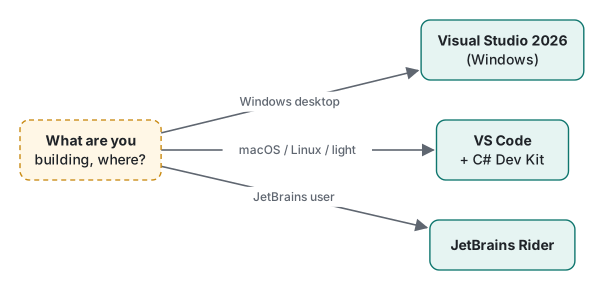
| Editor | OS | Good fit | Notes |
|---|---|---|---|
| Visual Studio 2026 | Windows | WinForms, WPF and other Windows desktop apps; large solutions | Community edition is free for individuals and small teams |
| Visual Studio 2022 | Windows | Existing projects targeting .NET 9 or earlier | 17.14 cannot target net10.0 (NETSDK1233) |
| VS Code + C# Dev Kit | Windows, macOS, Linux | A light editor; mixed-language work | C# Dev Kit uses the same license terms as Visual Studio |
| JetBrains Rider | Windows, macOS, Linux | You already use IntelliJ-family IDEs | Free for non-commercial use |
The trap to know about is Visual Studio 2022 with .NET 10. Microsoft Learn's page on .NET SDK, MSBuild and Visual Studio versioning states that targeting net10.0 requires Visual Studio 2026 (18.0) or later; Visual Studio 2022 17.14 can load the .NET 10 SDK but only targets .NET 9 and earlier. That is also why dotnet --info above reports MSBuild 18.x: it belongs to the Visual Studio 2026 generation. Visual Studio for Mac was retired in August 2024, so on a Mac use VS Code or Rider.
If your goal is C or C++ on Windows, which the 2021 article focused on, the approach is unchanged: select the "Desktop development with C++" workload in the Visual Studio installer. For C# alone you do not need that workload.
A macOS pitfall: Homebrew installs and DOTNET_ROOT
The Mac used here has .NET from Homebrew. dotnet run worked fine, but running the built executable directly failed:
$ ./bin/Release/net10.0/spin
You must install .NET to run this application.

App: …/bin/Release/net10.0/spin
Architecture: arm64
App host version: 10.0.14
.NET location: Not found
…
  Default location:
    /usr/local/share/dotnet
The executable (the "app host") looks for .NET in the DOTNET_ROOT environment variable and then in the default /usr/local/share/dotnet. Homebrew puts .NET under /opt/homebrew/Cellar/dotnet/…/libexec, so the app host cannot find it. A global tool installed with dotnet tool (ilspycmd, in our case) failed with the same message. The fix:
$ export DOTNET_ROOT="$(brew --prefix dotnet)/libexec"
With that set, both the executable and the tool ran normally. Put the line in your shell profile (~/.zshrc or similar) so you do not have to repeat it. If you would rather avoid the difference altogether, use Microsoft's official .pkg installer.
With the environment ready, continue with C# arrays and C# methods. Every example in those articles was re-checked in the same kind of dotnet new console project shown here.
Tested with .NET SDK 10.0.403 / runtime 10.0.14 (Homebrew), C# 14, macOS 26.6.2 on an Apple Silicon Mac (M1 Pro).
FAQ
Do I need Visual Studio to start learning C#?
No. All you need is the .NET SDK. With it installed, dotnet new console creates a project and dotnet run builds and runs it. Choose an editor afterwards: Visual Studio 2026 on Windows, or VS Code with the C# Dev Kit or JetBrains Rider on any OS.
Can Visual Studio 2022 build .NET 10 projects?
According to Microsoft Learn's page on .NET SDK, MSBuild and Visual Studio versioning, targeting net10.0 requires Visual Studio 2026 (version 18.0) or later. Visual Studio 2022 17.14 can use the .NET 10 SDK but can only target .NET 9 and earlier; targeting net10.0 produces warning NETSDK1233.
My built app says 'You must install .NET to run this application' on macOS. Why?
With a Homebrew install of .NET, dotnet run works, but running the executable in bin directly fails because the app host looks in DOTNET_ROOT or the default /usr/local/share/dotnet. Set export DOTNET_ROOT="$(brew --prefix dotnet)/libexec" in your shell profile, or use Microsoft's official installer instead.