C# File I/O on .NET 10: Async, BOM and Path Traps
C# file I/O re-tested on .NET 10: using, async APIs, real UTF-8 BOM bytes, Path.Combine traps, and measured ReadAllLines vs ReadLines speed and memory.
Revised November 2026. This tutorial first appeared in Korean in 2021. We re-ran every example on .NET 10.0.14 (C# 14), inside temporary folders on macOS. All of them compiled, but the first one fails with an
IOExceptionthe second time you run it, and the original class table describedStreamReaderas "a TextReader that reads from a string", which isStringReader's job. Below are the corrections, plususingdeclarations, the async APIs, the actual bytes a UTF-8 BOM adds, legacy code pages, thePath.Combinetraps, and a measurement of how each way of reading a large file performs.
This article is for C# developers who read and write logs, CSV exports or config files and have run into one of the classics: "the process cannot access the file because it is being used by another process", mangled accented characters, a CSV whose first column name never matches because of an invisible BOM, or a service whose memory spikes on a large file. The short version: dispose streams with using, always state the encoding, and stream large files line by line with ReadLines or a StreamReader with a bigger buffer. Every example ran in a folder created by Directory.CreateTempSubdirectory() and deleted afterwards.
File, FileInfo, FileStream: running the 2021 example twice
File offers static methods; FileInfo wraps one path as an object. Use File for one-off operations and FileInfo when you will query the same file's size, timestamps or attributes repeatedly.
| Task | File | FileInfo |
|---|---|---|
| Create | File.Create("a.txt") returns a FileStream |
new FileInfo("a.txt").Create() |
| Copy | File.Copy("a.txt", "b.txt") |
src.CopyTo("b.txt") |
| Delete | File.Delete("a.txt") |
file.Delete() |
| Move | File.Move("a.txt", "b.txt") |
file.MoveTo("b.txt") |
The original first example creates a.txt and b.txt and copies them to c.txt and d.txt. We ran it twice in the same folder:
run 1: ok -> a.txt, b.txt, c.txt, d.txt
run 2: IOException: The file '…/fio-k2wd69/c.txt' already exists.
File.Create silently overwrites, but File.Copy and CopyTo throw if the destination exists. Pass overwrite: true as the third argument when that is what you want. (We shortened the temporary path in the message.)
The 2021 text warned that forgetting to close a stream causes an "already in use" exception. That sounds Windows-specific, but .NET emulates FileShare semantics on Unix too, and it reproduced on macOS:
FileStream open = File.Create("e.txt");   // opened with FileShare.None
File.Copy("e.txt", "f.txt");              // copy before closing
while open: IOException: The process cannot access the file '…/e.txt' because it is being used by another process.
FileStream itself works in bytes. For text you layer a StreamReader or StreamWriter on top of it.
StreamReader, StreamWriter and using declarations
To correct the 2021 table: StreamReader is a TextReader that decodes a byte stream into characters using an encoding, and StreamWriter does the reverse. The class that reads from a string is StringReader.
What happens if you forget Close()? We measured it:
var sw = new StreamWriter("h.txt");
sw.WriteLine("written but never flushed");
Console.WriteLine(new FileInfo("h.txt").Length);   // 0
sw.Close();
Console.WriteLine(new FileInfo("h.txt").Length);   // 26
h.txt length before Close: 0 bytes
h.txt length after Close:  26 bytes
StreamWriter buffers internally and writes to disk on Flush or Close (that is, Dispose). If an exception skips the Close, the file is left at zero bytes. That is why modern code never calls Close() by hand and uses using instead. Since C# 8 you can write a using declaration without braces; building with LangVersion 7.3 confirms it with error CS8370. The 2021 example, rewritten:
{
    using var sw = new StreamWriter(path);
    sw.Write("sw.Write()");
    sw.Write(" sw.Write()");
    sw.WriteLine(" sw.WriteLine()");
    sw.WriteLine("sw.WriteLine()");
}   // Dispose runs here (Flush + Close)

using (var sr = new StreamReader(path))
{
    while (sr.ReadLine() is { } line)
        Console.WriteLine(line);
}
sw.Write() sw.Write() sw.WriteLine()
sw.WriteLine()
The output matches 2021. Remember that using var disposes at the end of the enclosing block, so if you read the file back in the same method, put the writer in its own block as above. The original while (sr.Peek() >= 0) still works, but matching ReadLine() against a non-null pattern is simpler. Line endings follow Environment.NewLine: \n (one byte) on macOS and Linux, \r\n (two bytes) on Windows.
The async File APIs
In UI apps and servers you use the async APIs so a thread is not held while the disk works. Code and output on .NET 10:
await File.WriteAllLinesAsync(path, ["alpha", "beta", "gamma"]);
await File.AppendAllTextAsync(path, "delta\n");
string[] all = await File.ReadAllLinesAsync(path);
Console.WriteLine($"ReadAllLinesAsync: {all.Length} lines");

await foreach (string line in File.ReadLinesAsync(path))
    if (line.StartsWith('g')) Console.WriteLine($"ReadLinesAsync found: {line}");

await using (var fs = new FileStream(path, FileMode.Open, FileAccess.Read, FileShare.Read, 4096, useAsync: true))
{
    byte[] buf = new byte[5];
    int n = await fs.ReadAsync(buf);
    Console.WriteLine($"FileStream.ReadAsync: {n} bytes -> {Encoding.UTF8.GetString(buf, 0, n)}");
}
ReadAllLinesAsync: 4 lines
ReadLinesAsync found: gamma
FileStream.ReadAsync: 5 bytes -> alpha
bytes on disk: 23 (newline = "\n")
File.ReadLinesAsync returns IAsyncEnumerable<string>, consumed with await foreach; async streams are disposed with await using. As the benchmark below shows, though, async is not faster. In a console tool or batch job where blocking is harmless, the synchronous API is simpler and quicker.
Encodings: the real bytes of a UTF-8 BOM
We saved the string "가あA" (one Korean, one Japanese and one ASCII character) six ways and dumped the bytes on disk:
File.WriteAllText(path, s)                      7 bytes  EA B0 80 E3 81 82 41
… , Encoding.UTF8                              10 bytes  EF BB BF EA B0 80 E3 81 82 41
… , new UTF8Encoding(false)                     7 bytes  EA B0 80 E3 81 82 41
new StreamWriter(path)                          7 bytes  EA B0 80 E3 81 82 41
new StreamWriter(path, false, Encoding.UTF8)   10 bytes  EF BB BF EA B0 80 E3 81 82 41
… , Encoding.Unicode                            8 bytes  FF FE 00 AC 42 30 41 00
Leave the encoding out and you get UTF-8 without a BOM. Pass Encoding.UTF8 explicitly and you get UTF-8 with a BOM (EF BB BF). That is the source of the "I specified UTF-8 and now my CSV header doesn't match" bug. To guarantee no BOM, pass new UTF8Encoding(false). Conversely, if the file is for software that needs a BOM to detect UTF-8, such as older versions of Excel on Windows, use Encoding.UTF8 on purpose.
Reading differs too:
File.ReadAllText(BOM file).Length          = 3
Encoding.UTF8.GetString(bytes).Length      = 4  first=U+FEFF
File.ReadAllText(UTF-16 file) == text      = True
File.ReadAllText and StreamReader detect the encoding from the BOM and strip it. File.ReadAllBytes followed by Encoding.UTF8.GetString keeps U+FEFF as an invisible first character, which breaks string comparisons and JSON parsing.
Files from older Windows software are often Windows-1252, not UTF-8, and .NET (Core) cannot read that code page out of the box:
1252: NotSupportedException: No data is available for encoding 1252. For information on defining a custom encoding, see the documentation for the Encoding.RegisterProvider method.
Add Encoding.RegisterProvider(CodePagesEncodingProvider.Instance); at startup; on .NET 10 it compiled with no extra NuGet package. After registering, "café – 5€" saved as Windows-1252 is 63 61 66 E9 20 96 20 35 80: the é, the en dash and the euro sign are one byte each. Read back as UTF-8 it becomes caf� � 5�; read with Encoding.GetEncoding(1252) it is correct again. The same provider handles Shift_JIS (932) and Korean CP949 (949).
Path.Combine traps
Path.Combine is the standard advice against gluing paths together with +, yet it has traps of its own. Output on macOS:
string root = "/srv/app/uploads";
Path.Combine(root, "photo.jpg")                         // 1
Path.Combine(root, "/etc/passwd")                       // 2
Path.Join(root, "/etc/passwd")                          // 3
Path.Combine(root, "../../secret.txt")                  // 4
Path.GetFullPath(Path.Combine(root, "../../secret.txt"))// 5
Path.Combine("logs", @"2026\11\app.log")                // 6
1 /srv/app/uploads/photo.jpg
2 /etc/passwd
3 /srv/app/uploads/etc/passwd
4 /srv/app/uploads/../../secret.txt
5 /srv/secret.txt
6 logs/2026\11\app.log
- Case 2: a rooted second argument makes
Combinethrow away the base folder. Feed it an uploaded file name and the caller chooses any path on the machine. - Case 3:
Path.Joinsimply concatenates and keeps the base. - Cases 4 and 5: neither stops
..; after normalization the path is outside the base. - Case 6: a Windows-style
\is part of the file name on macOS and Linux, not a separator. Carry a Windows path string to a Linux server and you get one file literally named2026\11\app.log.
When user input is involved, normalize and check containment:
static string SafeJoin(string baseDir, string userPath)
{
    string full = Path.GetFullPath(Path.Join(baseDir, userPath));
    string prefix = Path.GetFullPath(baseDir).TrimEnd(Path.DirectorySeparatorChar) + Path.DirectorySeparatorChar;
    if (!full.StartsWith(prefix, StringComparison.Ordinal))
        throw new UnauthorizedAccessException($"outside of base: {userPath}");
    return full;
}
SafeJoin(photo.jpg) -> /srv/app/uploads/photo.jpg
SafeJoin(/etc/passwd) -> /srv/app/uploads/etc/passwd
SafeJoin(../../secret.txt) -> outside of base: ../../secret.txt
SafeJoin(../uploads-evil/x) -> outside of base: ../uploads-evil/x
The trailing separator on the prefix is the important part: without it, /srv/app/uploads-evil also "starts with" /srv/app/uploads. On Windows, paths are case-insensitive, so use StringComparison.OrdinalIgnoreCase there (we did not run this part on Windows).
Reading a large file: ReadAllLines vs ReadLines vs a buffered stream
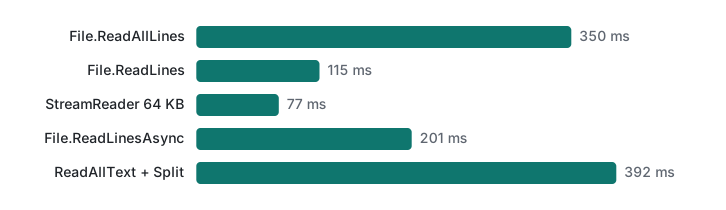
We generated a log-style file in the temp folder (2,000,000 lines, 116.3 MiB) and counted the lines containing ,ERROR, (400,353 of them). .NET 10.0.14, Release build, Apple M1 Pro. Each method ran in its own process, five timed runs per process after a warm-up; we repeated that three times and report the median of the three medians. Peak memory is the process's maximum resident set size from /usr/bin/time -l; allocation is the GC.GetTotalAllocatedBytes delta. The file sat in the OS cache after the first pass, so this compares .NET's processing cost, not disk speed.
File.ReadAllLines(path).Count(l => l.Contains(",ERROR,"));
File.ReadLines(path).Count(l => l.Contains(",ERROR,"));
// 64 KB buffers + SequentialScan
using var fs = new FileStream(path, FileMode.Open, FileAccess.Read, FileShare.Read, 1 << 16, FileOptions.SequentialScan);
using var r = new StreamReader(fs, Encoding.UTF8, false, 1 << 16);
while (r.ReadLine() is { } l) if (l.Contains(",ERROR,")) c++;
await foreach (var l in File.ReadLinesAsync(path)) …
File.ReadAllText(path).Split('\n').Count(…);
| Method | Median time | Range of 3 | Allocated per run | Peak memory |
|---|---|---|---|---|
File.ReadAllLines |
350 ms | 342–414 | 321.9 MiB | 511–568 MiB |
File.ReadLines |
115 ms | 113–133 | 274.6 MiB | ~50 MiB |
StreamReader, 64 KB buffer |
77 ms | 76–104 | 274.8 MiB | 47–50 MiB |
File.ReadLinesAsync |
201 ms | 194–202 | 417.9 MiB | ~51 MiB |
ReadAllText + Split |
392 ms | 372–586 | 756.1 MiB | ~804–807 MiB |
- Total allocation is similar for
ReadLinesandReadAllLines; both create one string per line. The difference is whether those strings stay alive.ReadAllLineskeeps two million strings reachable in an array, so its peak memory was more than ten times higher, and the GC copying all those live objects made it three times slower. ReadAllText+Splitholds the whole file as one string and the line array at the same time. It was the heaviest by far; avoid it for anything large.- A
StreamReaderwith a 64 KB buffer was the fastest. The only differences fromReadLinesin our code are the buffer size andSequentialScan. ReadLinesAsyncused the same memory but went through an async state machine per line and was about 1.7 times slower than synchronousReadLines. You use async to free the thread, not for speed.
Summary
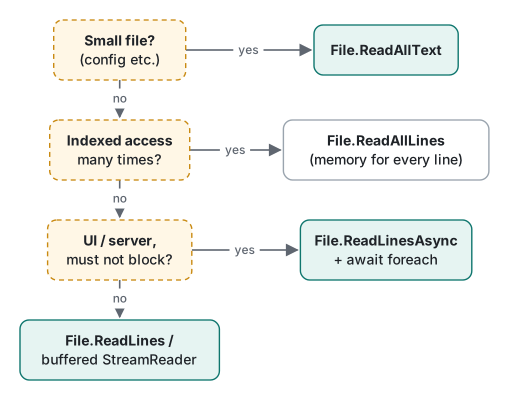
| Situation | Use |
|---|---|
| Small config file, all at once | File.ReadAllText / WriteAllText with an explicit encoding |
| One pass over a large file | File.ReadLines or a StreamReader with a larger buffer |
| Repeated indexed access to lines | File.ReadAllLines, if memory allows |
| UI or server code that must not block | ReadAllLinesAsync, ReadLinesAsync, await using |
| Guaranteed UTF-8 without BOM | new UTF8Encoding(false) |
| Windows-1252, Shift_JIS, CP949 files | Register CodePagesEncodingProvider, then GetEncoding(...) |
| Paths built from user input | Path.Join + GetFullPath + base-prefix check |
For exception-handling patterns around I/O see C# exception handling; for querying lines with LINQ see LINQ basics.
Tested with .NET SDK 10.0.403 / runtime 10.0.14, C# 14, macOS on Apple M1 Pro (APFS). All files were created in temporary folders and deleted afterwards. Windows-specific behavior (case-insensitive paths, \ as a separator) follows Microsoft Learn and was not run on Windows.
FAQ
Should I use File.ReadAllLines or File.ReadLines?
For a single pass over the file, ReadLines. Counting ERROR lines in a 116 MiB, 2-million-line file took a median 350 ms and about 511–568 MiB peak memory with ReadAllLines, versus 115 ms and about 50 MiB with ReadLines (.NET 10, Release, Apple M1 Pro). A StreamReader with a 64 KB buffer was fastest at 77 ms. Use ReadAllLines only when you need indexed access to the lines.
Does C# write a BOM when saving UTF-8?
It depends on the call. File.WriteAllText(path, s) and new StreamWriter(path) wrote no BOM; passing Encoding.UTF8 explicitly added the three bytes EF BB BF. To be certain there is no BOM, pass new UTF8Encoding(false). When reading, File.ReadAllText removed the BOM, but Encoding.UTF8.GetString kept it as the character U+FEFF.
Is Path.Combine safe with user input?
No. If the second argument is rooted, such as /etc/passwd, the base folder is discarded entirely, and ../../ segments are kept and escape upward. Path.Join does not discard the base, but it does not stop .. either. Normalize with Path.GetFullPath and check that the result starts with the base folder plus a separator.